Email Gateway Integration Guide
Email Gateway Integration Guide v1
1. Introduction
Purpose
Audience
API Version
Import the collection
2. Prerequisites
Accounts
Credentials
Tools
Permissions
3. Authentication & Authorization
Methods
4. Base URLs & Environments
Production vs. Sandbox
5. Endpoint Reference
Email Endpoints
6. Error Handling
Example Error Response
7. Rate Limits & Quotas
8. API Reference
1. How to send an email -
Example Request (CURL) - Send Email without an attachment
Step 1: Navigate to Email-gateway Public

Step 2: Select the “Email-gateway“ folder in the collection list.
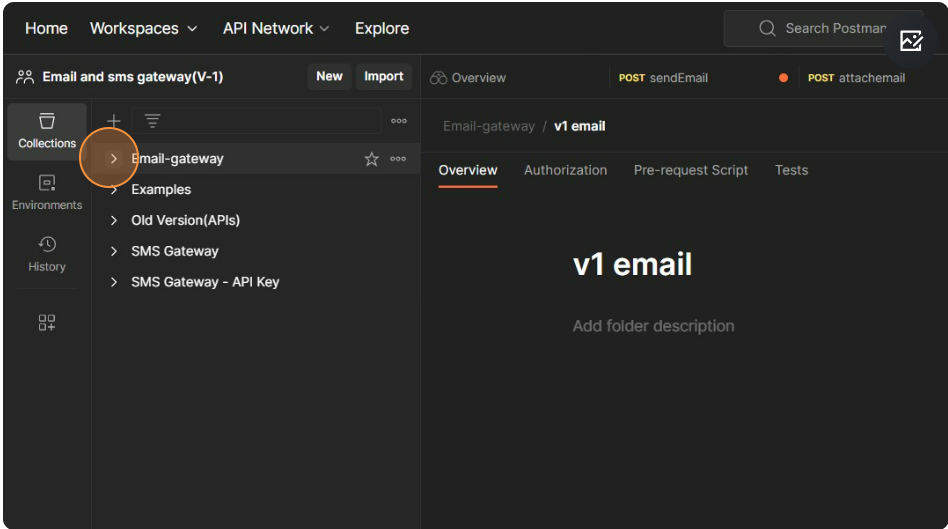
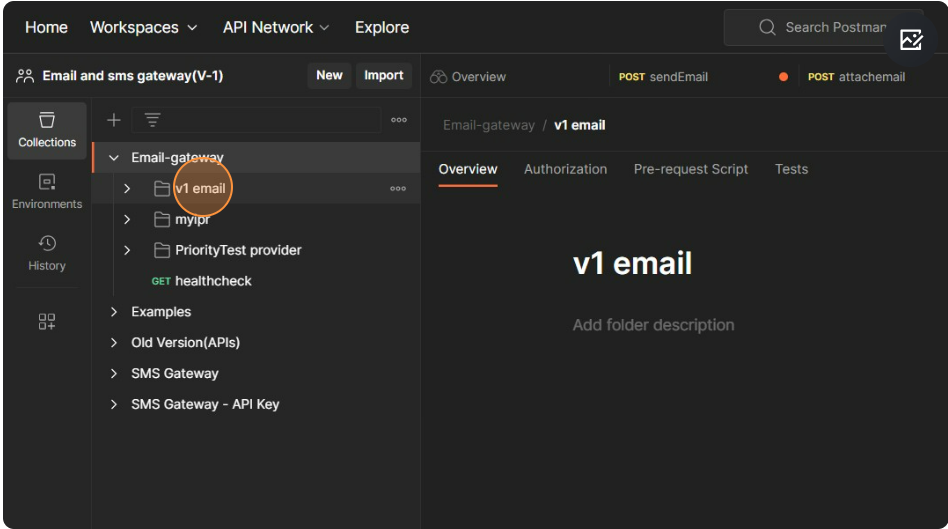
Step 3: Select “v1 email” folder from the collection list.
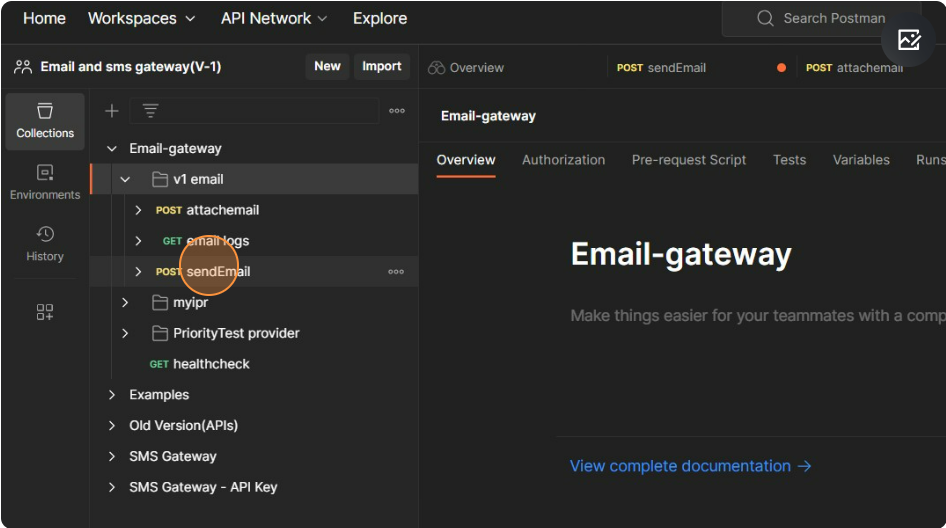
Step 4: Select “POST sendemail” from the collection list.
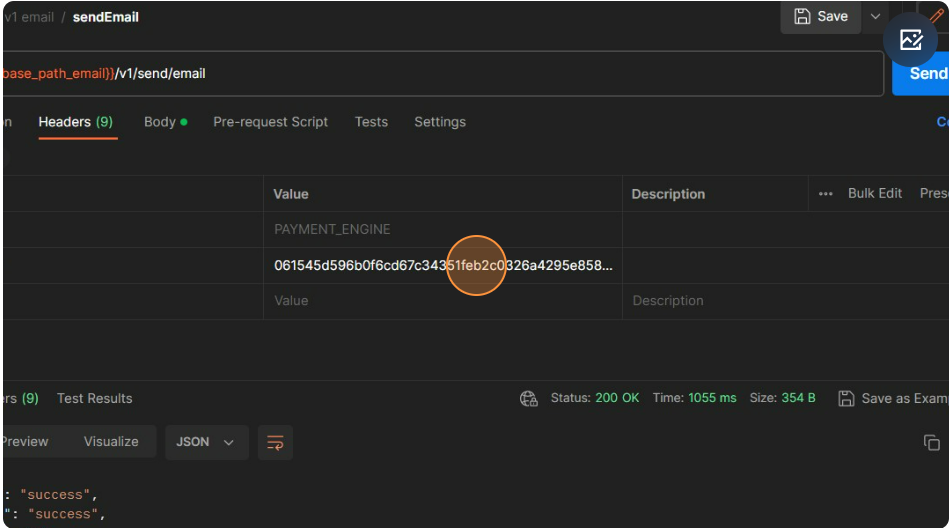
Step 5: Click on the "Headers" tab and enter your emailauthkey.
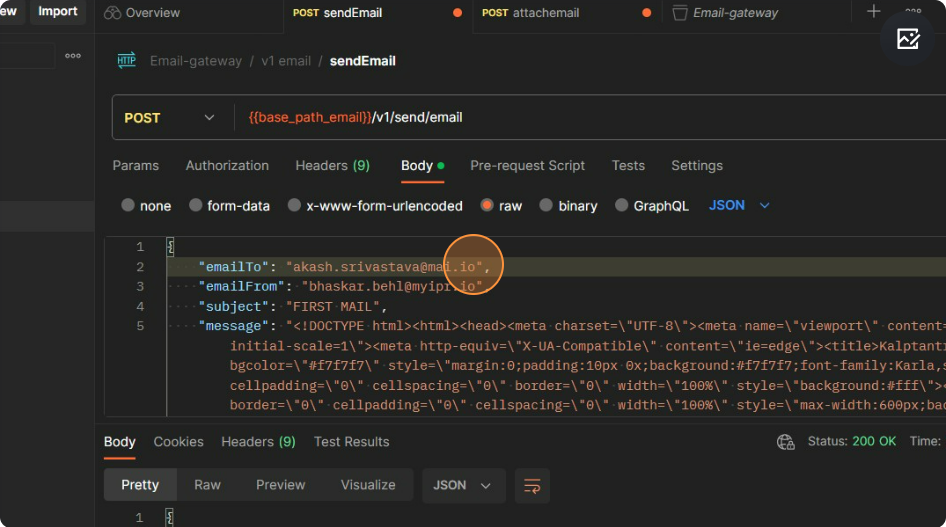
Step 6: Click on the "Body" tab and enter all the parameter values.
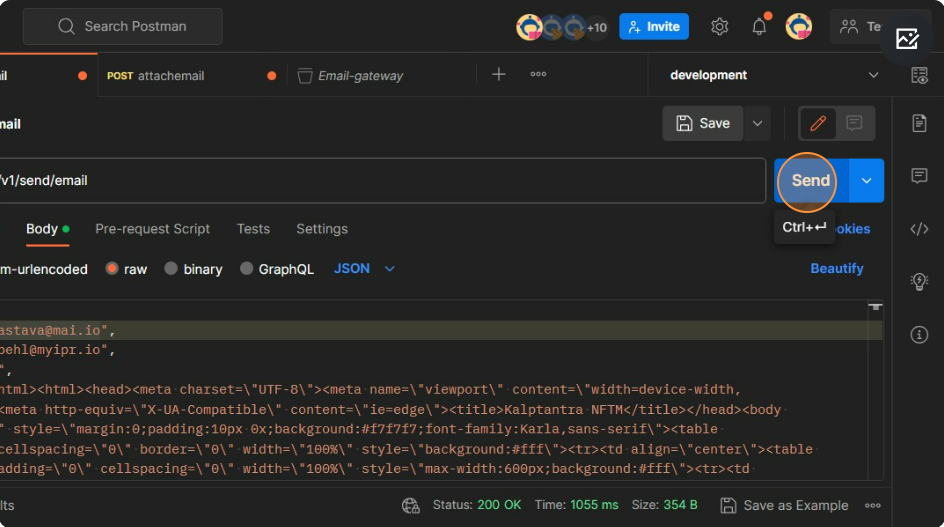
Step 7: Click "Send"
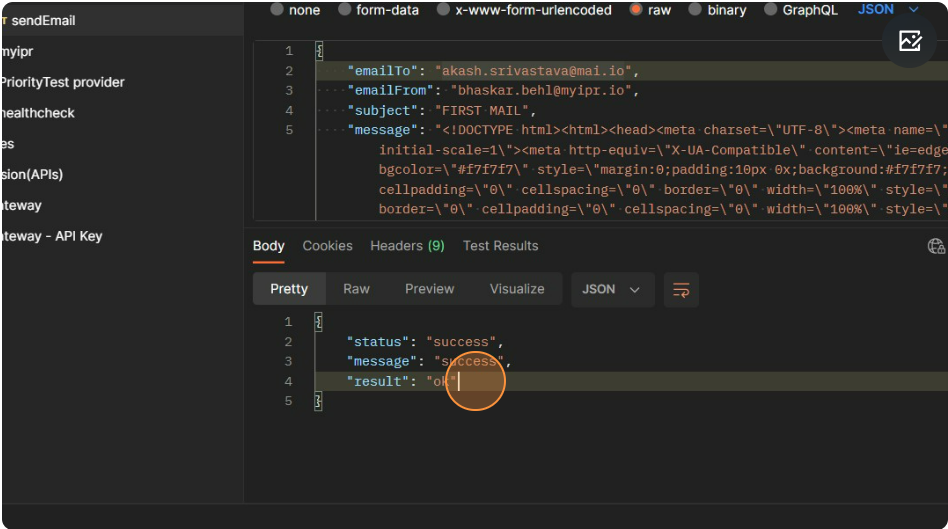
Step 8: The response body will receive a success message, and an email will be sent.
2. How to send an email with an attachment
Example Request (CURL) - Send Email with an attachment
Step 1: Navigate to Email-gateway public.
Step 2: Select the “Email-gateway“ folder in the collection list.
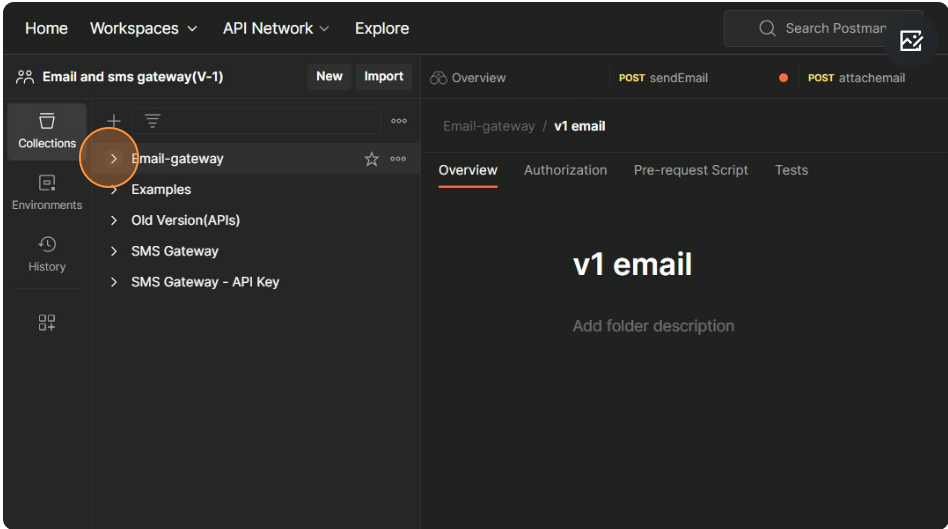
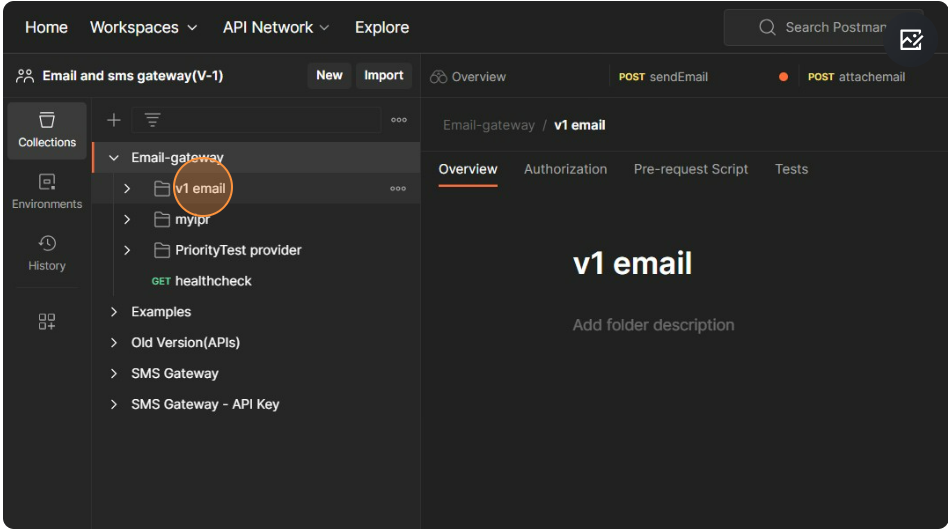
Step 3: Select “v1 email” folder from the collection list.
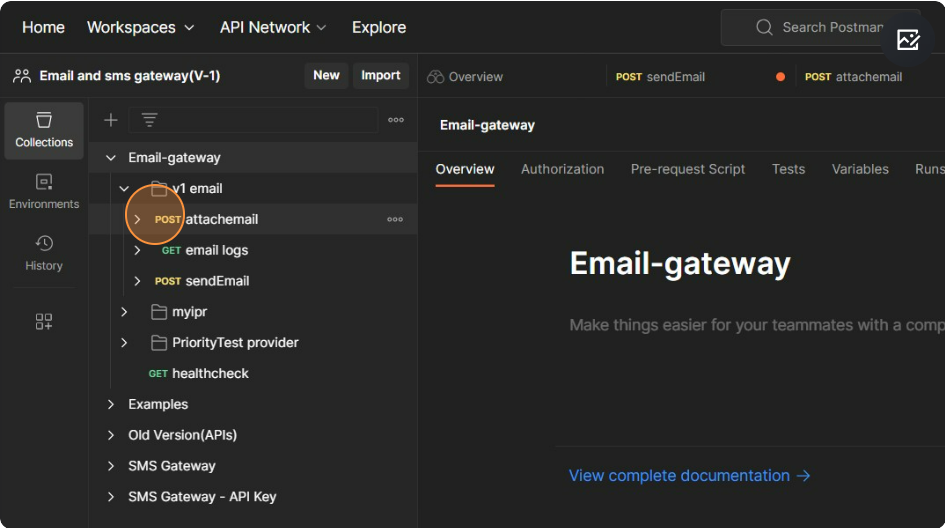
Step 4: Select “POST attachemail” from the collection list.
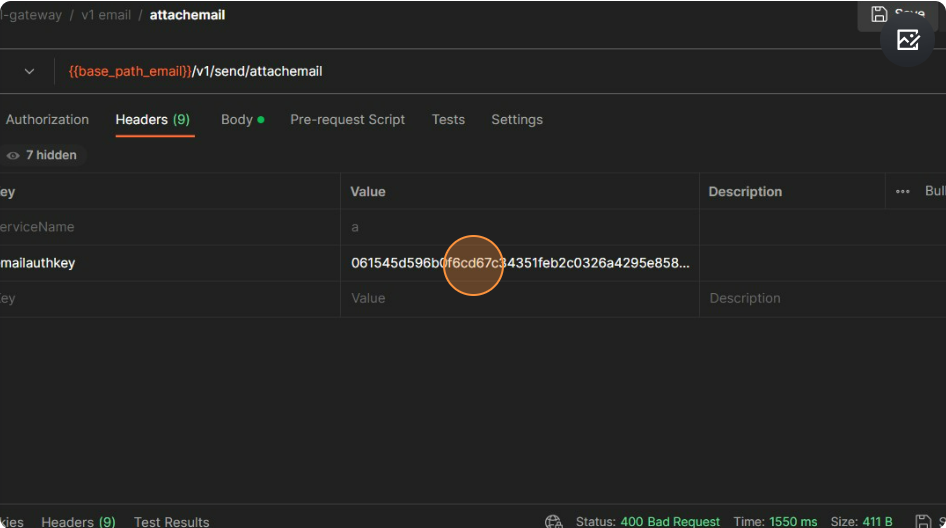
Step 5: Click on the "Headers" tab and enter your emailauthkey.
Step 6: Click on the "Body" tab and enter all the parameter values.
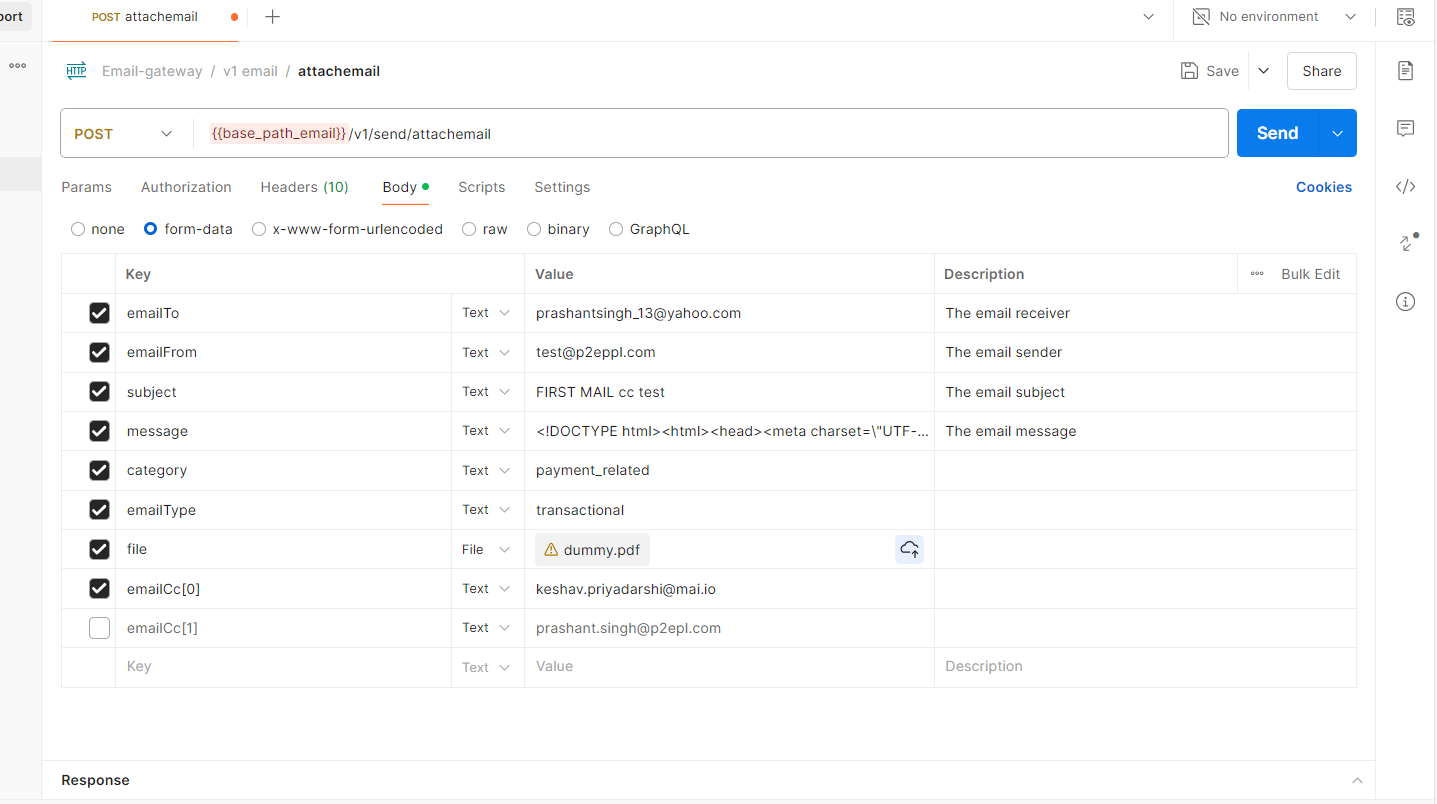
Step 7: Click "Send"
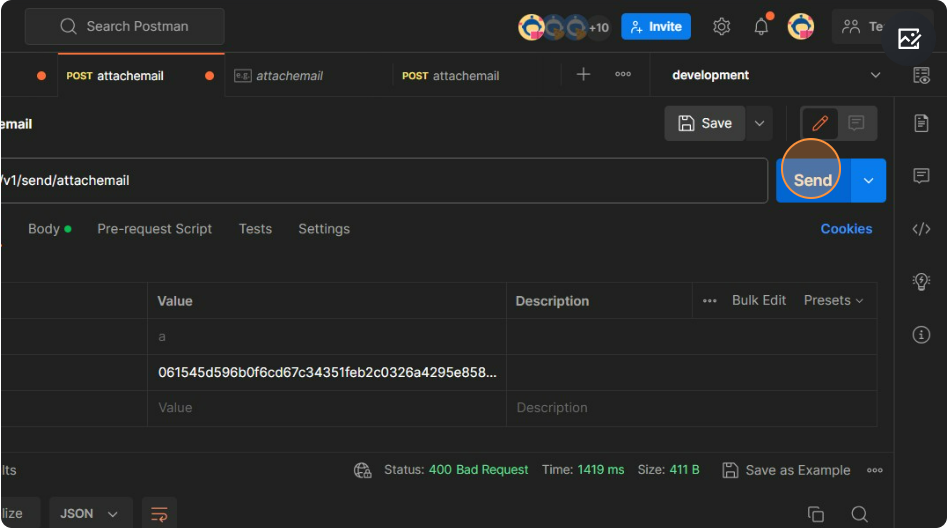
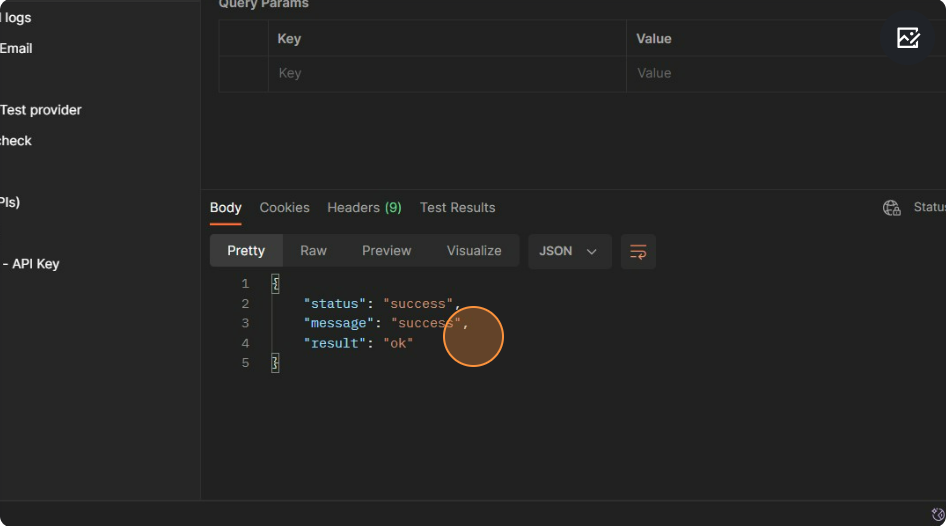
Step 8: The response body will receive a success message and an email with an attachment will be sent.
3. How to retrieve email logs
Example Request (CURL) - How to retrieve email logs
Step 1: Navigate to Email-gateway Public
Step 2: Select "GET email logs" in “v1 email” folder from the collection list.
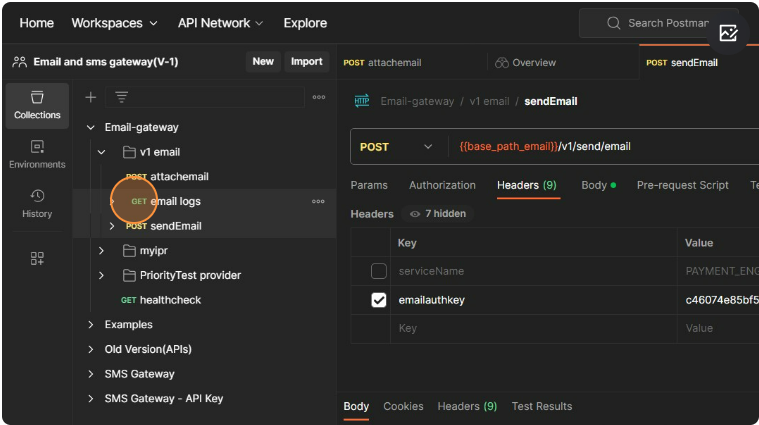
Step 3: Set the query parameters as per the requirement. "pageNo" ,"pageSize" or other parameters in the "Params" tab.
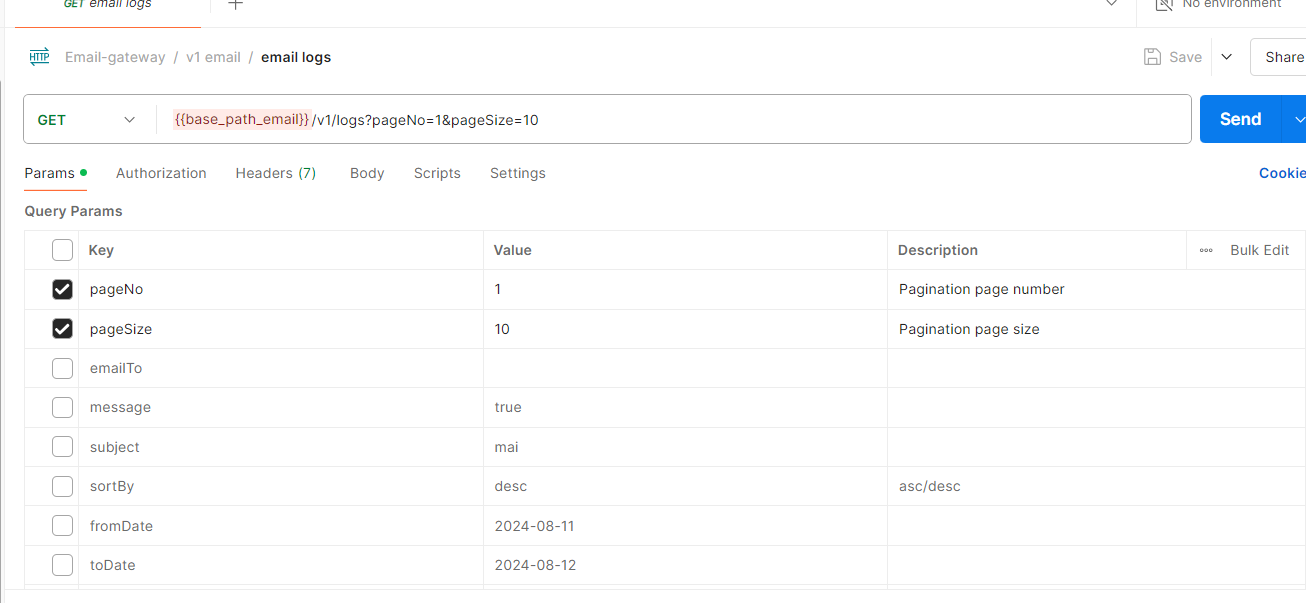
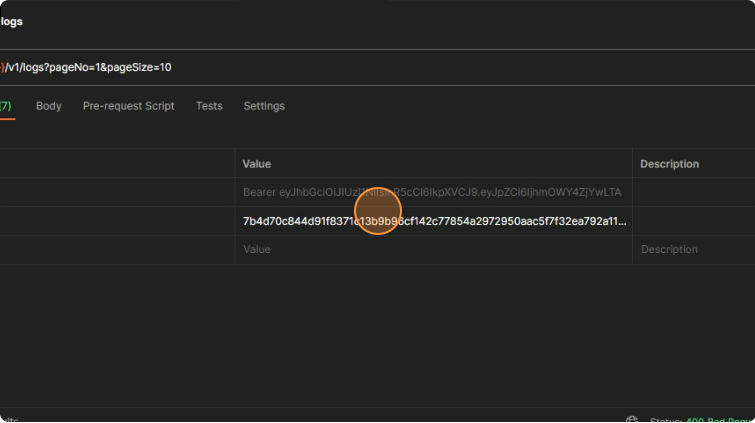
Step 4: Click on the "Headers" tab and enter your emailauthkey.
Step 5: Click "Send"
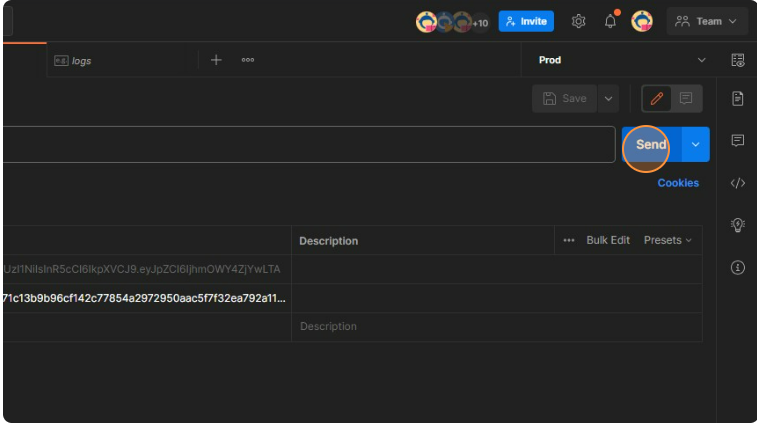
Step 6: The response body will receive a success message and all email logs.